LinkedIn lead gen forms to a CRM or Google Sheets
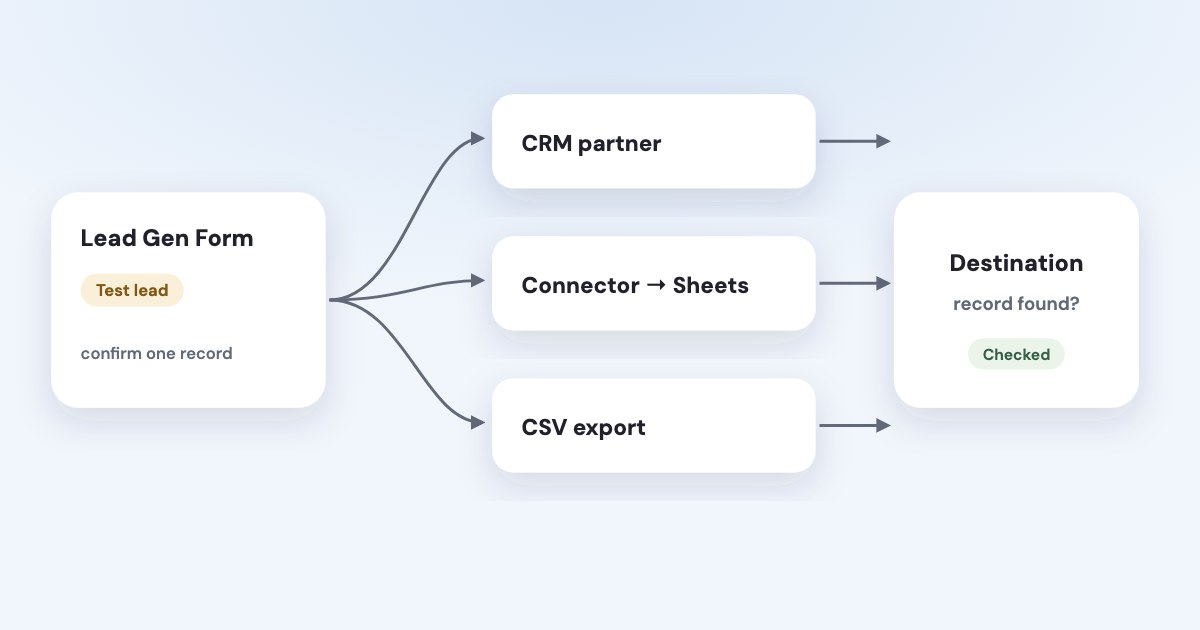
Send LinkedIn Lead Gen Form submissions through a supported CRM integration, or use a documented connector for Google Sheets; CSV export is the manual fallback LinkedIn documents. Start by confirming that the lead exists in Campaign Manager, then trace the selected account, form, permissions, and destination mapping. [1] [2] [3]
On this page10 sections
Which delivery route fits your existing setup?
If your CRM already supports LinkedIn lead syncing, start there. LinkedIn directs advertisers to supported marketing and CRM partners and documents downloading a CSV when the platform you use is not supported. [1]
For Google Sheets, Make and Zapier publish connector workflows. Do not describe those as a native LinkedIn-to-Sheets button: the official material checked here establishes partner routes, not a universal built-in Sheets integration. [6] [8]
The cost check below was made on official pages on November 4, 2026. Prices are in US dollars where a number was actually readable. [5] [7] [8] [9] [11]
| Route | Documented cost or pricing limitation |
|---|---|
| LinkedIn Lead Gen Forms | No additional form charge beyond the associated advertising costs |
| HubSpot lead sync | Documented for all products and plans; CRM features and billing still need checking |
| Zapier | Relevant templates marked Premium; Professional starts at US$19.99/month with yearly billing selected |
| Make | Pricing FAQ lists a Free plan with 1,000 credits/month; no paid dollar price was readable |
Treat a starting subscription price as a starting point, not your final cost per lead. Check the actual workflow, included usage, destination plan, and extra operations before you choose a paid route.
How do you use an existing CRM connection?
Follow the CRM provider’s current instructions rather than assuming the connection is configured entirely inside LinkedIn. LinkedIn warns that some partners do not support every field type, including certain hidden fields or custom checkboxes. [1]
For example, HubSpot’s current lead-sync guide documents the following route, as of November 2026. It also says a LinkedIn form needs a required Email field for HubSpot to create contacts. [5]
STEPS: 1. In HubSpot, click the settings icon. 2. Open Marketing → Ads. 3. Select Lead syncing. 4. Click Connect. 5. Select LinkedIn. 6. Select the relevant ad account. 7. Choose the offered sync timeframe for your requirement. 8. Click Save. [5]
HubSpot says new leads can take up to two hours to sync; that is provider-specific guidance read November 4, 2026, not a delivery guarantee for every connector. Use its documented window when distinguishing a normal wait from a failed route. [5]
Keep the selected account and form in your handoff note. A CRM connection that works for one account does not establish that the form attached to your current ad is included.
Where can you find and download the source lead?
LinkedIn’s help currently describes the route as Content & Assets → Lead generation forms. Menu labels can differ between accounts and help variants, so use the label shown in yours. The route below follows the help pages read November 4, 2026, as of November 2026. [2] [4]
STEPS: 1. Open the correct ad account in Campaign Manager. 2. Open Content & Assets, or Assets if that is the label shown in your account. 3. Select Lead generation forms. 4. Select the checkbox for the relevant form. 5. Choose the Start date and End date in the time-range control. 6. Click Download leads. 7. Click Download in the pop-up window. [2]
LinkedIn documents the result as a CSV export. Use it as evidence of the source record or as a manual import fallback, and follow your destination’s field and formatting requirements. [1] [2]
The permissions guide requires appropriate ad-account and Page access to download or integrate leads. Check both sides of that access rather than treating the ability to read ad performance as proof that you can retrieve personal lead records. [3]
How can you send the leads to Google Sheets?
Make’s official use case documents LinkedIn Lead Forms → Google Sheets, including the Watch Form Responses (ACID) module and spreadsheet actions. Use that current recipe to configure your selected account and form, then map the destination columns. [6]
The recipe connects Watch Form Responses (ACID) to Google Sheets actions including Search Rows and Add a Row. Follow its full configuration for the selected account and form, rather than treating a module name as proof that the destination is ready. [6]
Choose your own record rule before enabling the workflow. You may want a new row for each inquiry, or an update to an existing contact with a separate inquiry history; those choices answer different business needs.
Zapier also publishes LinkedIn Ads-to-Sheets templates marked Premium. Its pricing page displayed Professional from US$19.99 per month with Pay yearly selected in USD on November 4, 2026; do not present the Free plan as proof that this premium workflow is free. [8] [9]
Make’s pricing page did not expose a paid-plan price in either the text reader or browser. Its FAQ documents a Free-plan allowance of 1,000 credits per month, but that does not establish the number of complete lead workflows you can run. [7]
How do you test the exact route?
LinkedIn documents a test lead sent from the form’s menu. These are the current official labels read November 4, 2026; no test was submitted during this research. [4]
STEPS: 1. Open the ad account in Campaign Manager. 2. Open Content & Assets. 3. Select Lead generation forms. 4. Open More beside the intended form. 5. Select Send Test Lead. 6. Complete the required fields. 7. Click Send. [4]
Find the resulting record in the source export and then in the destination. Compare the identifying information, required fields, campaign context you need, and the person responsible for follow-up.
LinkedIn says the source export’s Test Lead column distinguishes test records from real leads. Use that flag in your check so the test does not become an apparently new sales opportunity. [4]
Do not stop when an authorization screen reports success. The useful evidence is the expected record in the expected place, with fields your team can actually use.
What should you check when leads do not arrive?
Trace the first missing stage: source record, connector retrieval, destination write, or sales assignment. A successful source export narrows the investigation but does not prove that the connector or CRM accepted the same record.
Check the selected form and field mapping after a draft form changes. LinkedIn explicitly warns that edited forms can require partner-side account, form, and mapping updates before new test leads sync correctly. [10]
Review errors and any destination rules that can update an existing contact instead of creating a new visible record. If your team searches only the newest-contact view, it may miss an inquiry attached to someone already in the CRM.
Use the provider’s documented retry and duplicate behavior before replaying records. Keep enough information to reconcile the failed interval without importing the same inquiry repeatedly.
For the business handoff, use the lead response time guide and cost per qualified lead. For reporting after delivery is established, see how to connect LinkedIn Ads to ChatGPT or Claude.
What to do next
Choose the existing CRM route or one documented Sheets connector and confirm its actual plan requirements. Save the account, form, destination, and field mapping that your team will maintain.
Send a test through that exact form and follow it into the destination before relying on the connection. Then assign a person to review failures and reconcile missing records rather than assuming an integration needs no ongoing owner.
Where Variafy fits
Variafy does not establish this form-to-CRM delivery route; use the CRM integration or connector above first. It can connect LinkedIn Ads and your business’s CRM deals and payments to an AI assistant for outcome reporting. Reading data is free in the free invitation beta; sign-up is closed. Join the waitlist.
How we checked
Checked on 4 November 2026 against the pages below, read in English. We checked the documentation only: we did not run these steps in a live ad account.
- www.linkedin.com/help/lms/answer/a423353?lang=en — Supported partner routes, CSV fallback, and unsupported field caveats
- www.linkedin.com/help/lms/answer/a425750 — Form navigation variation, CSV download controls, and permissions
- www.linkedin.com/help/linkedin/answer/a421620/permissions-for-lead-gen-forms?lang=en — Ad-account and Page permissions for lead access and integrations
- www.linkedin.com/help/lms/answer/a420737?lang=en — Current Content & Assets route, Send Test Lead, and Test Lead flag
- knowledge.hubspot.com/ads/sync-leads-from-your-facebook-page-or-linkedin-ads-account-to-hubspot — Plan availability, lead-sync controls, required email, and up-to-two-hour guidance
- apps.make.com/linkedin-lead-forms-use-case — LinkedIn Lead Forms and Google Sheets recipe and module names
- www.make.com/pricing — Free-plan allowance and credits; no readable paid price in page or browser
- zapier.com/apps/google-sheets/integrations/linkedin-ads — LinkedIn-to-Sheets templates and Premium labels
- zapier.com/pricing — US$19.99/month Professional starting price; USD and yearly billing selection verified in browser
- www.linkedin.com/help/lms/answer/a426297 — Partner-specific checks after form edits and mapping refresh
- www.linkedin.com/help/lms/answer/a420550?lang=en — No separate Lead Gen Form charge beyond advertising
What we could not confirm
- A native LinkedIn-to-Google-Sheets integration
- Identical menu labels across all accounts and help variants
- Make’s paid-plan price
- A universal connector delivery time, backfill period, or cost per lead
- That every field syncs through every partner. No lead was submitted and no connector was configured. An older LinkedIn blog uses Account Assets and a different lead-retention statement
- It was not used for current navigation or a retention promise
Variafy is our product.
Questions
How do LinkedIn lead gen form leads reach my CRM?
LinkedIn documents CRM and marketing-partner integrations, plus a manual CSV export. For Google Sheets, Make and Zapier publish documented workflows.
Is there a free way to send LinkedIn leads to Google Sheets?
We could not establish a universally free route. Zapier labels its relevant templates Premium, and Make’s free plan has a monthly allowance with no readable paid price. Check each provider’s current pricing.
How do I know the connection works?
Test the specific form and confirm that a record reaches the destination before relying on it. Compare it with the source lead, not with ad reporting.