Facebook lead ads: leads not showing up? Start here
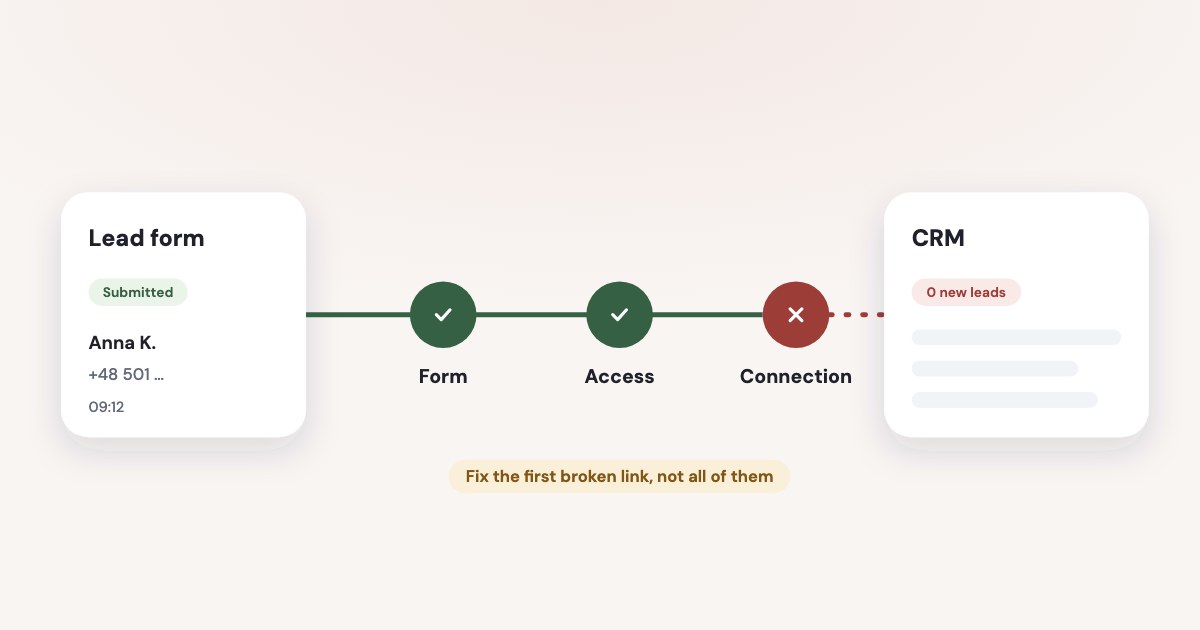
If your Facebook lead ads leads are not showing up, first download submissions from the exact instant form used by the ad. If the missing lead is there, investigate the connection, permissions and destination; if it is absent, check the Page, form and submission date before blaming the CRM. Meta makes lead information available to download for up to 90 days after submission. [1] [2]
On this page10 sections
First, find the submission in Meta
Pick one enquiry you can identify by submission time and an email address or phone number you are authorized to handle. Record the Page and form associated with the reported problem, rather than starting with an account-wide lead total.
As of November 2026, Meta documents downloads from Ads Manager, the Instant forms page and Leads Center. Use the form download as a separate check when the Leads Center view is not showing the record you expect. [1]
- Open Meta Business Suite for the relevant business and Page.
- Click All tools.
- Click Instant forms.
- Click Download beside the relevant form.
- Choose Download by date range.
- Select the period containing the missing submission.
- Click Download.
- In Download leads, click CSV or XLS.
These are Meta’s documented English labels, read November 4, 2026. Choose a date range for the investigation instead of relying on Download new leads, which covers submissions since the previous download. [1]
Search the downloaded file for your example. If it is there, preserve that row for reconciliation and move down the delivery chain; if it is absent, verify the source form, date and access with the Page owner.
Check whether the integration follows the current form
Compare the form used by the affected ad with the form selected in your connector. Record the IDs where available, along with the names, so that a renamed or replacement form does not look like the same source.
Pipedrive’s documented Zapier route listens to a specific selected form and requires a separate Zap for a different form. This is a concrete reason to check form selection after changing your lead collection setup, although other connectors may subscribe more broadly. [5]
Do not assume every edit changes the ID. The useful diagnostic question is whether the ad’s current form and the connector’s selected form are actually identical; an account-specific edit behavior is not a substitute for that comparison.
For the original setup, use our Facebook lead form guide. Compare the affected form selection against a working route before rebuilding a shared connection.
Names are a clue
Record the Page, form ID, destination and connection owner; update that record when replacing a form.
Check access for the person and the CRM
Meta separates receiving a lead notification from fetching the lead’s information. Its leads-access documentation says a connected CRM needs permission to receive updates, and the person behind a user or Page access token also needs leads access to retrieve the data. [3]
Ask the Page-owning business to inspect the existing access configuration. As of November 2026, Meta documents this route. [3]
- Open Meta Business Suite.
- Select the relevant Business portfolio.
- Open Settings.
- Open Integrations.
- Click Leads access.
- Inspect the People and CRMs tabs for the connection you are repairing.
- If the intended CRM is missing from customized access, click Assign CRMs.
- Select that connected CRM.
- Click Assign.
Check the intended person’s access too. Meta says people need a Page role before they can receive leads access, and the CRM must already be connected before it appears in the assignment list. [3]
Customization changes access
Do not enable Customize access merely to look around. Establish whether access is already customized and make the specific correction with the portfolio owner.
If an agency can manage ads but cannot inspect submissions, review agency access. Keep the responsibility for granting lead access with the client business.
Repair the connection that actually failed
Once a source submission exists, look for the corresponding integration run. Use its timestamp and lead ID to distinguish a missing event from a failed destination write or a notification that was never sent.
A previously working connection can lose authorization. Salesforce documents expired Facebook authorization as a cause of stopped imports, and says replacing its token with one lacking access to existing forms can also interrupt collection. [6]
Reconnect through your provider with the intended Facebook user and Pages. Check the other dependencies before removing a shared authorization.
In HubSpot, the documented error route is Marketing > Ads, the ad account status, Sync errors, then the affected Page and form under Lead syncing. A field error can be examined in Status and corrected with Edit mapping; these labels were read November 4, 2026. [7]
Use the error message to choose the next action. Reauthorization will not resolve a destination’s invalid required field, and changing a field mapping will not grant missing Page access; Salesforce lists both permission and required-field problems among ingestion causes. [8]
Test the handoff, then check the saved record
Meta’s Lead Ads testing tool lets you create a test submission for a selected Page and form and inspect webhook delivery. It allows one test lead per form, so an existing test lead must be removed before another is created. [4]
- Open the Lead Ads testing tool linked from Meta’s testing documentation.
- Select the affected Page.
- Select the affected Form.
- If an earlier test lead exists, use Delete lead for that test record.
- Click Create Lead to generate the test submission.
- Click Track Status after it appears.
- Examine the receiving app’s status and any error information.
Meta’s documentation uses these labels as read November 4, 2026. It describes success as delivery to the receiving endpoint, so treat that as evidence about one handoff, then verify the destination record separately. [4]
For Zapier specifically, its official instructions use Test trigger immediately after creating the sample and recommend checking Track Status for permission errors. Follow that provider-specific test sequence if the sample does not appear in the editor. [9]
Follow recognizable test details into the CRM, sheet and email action. Keep the record marked as a test.
Recover the gap without creating duplicates
Meta’s 90-day limit concerns downloading submission information; an old campaign total can still include leads whose details are no longer downloadable. It does not mean a contact already stored in your CRM automatically disappears on the same schedule. [2]
Download the gap while investigating. Reconcile it against saved records before importing, and record any unresolved submissions.
Search the destination for the email, phone and lead ID where stored, rather than looking only for a newly created contact. Check whether the run updated an existing record, wrote into another object, or failed before saving; confirm the actual behavior from that run’s output.
If a row is present in the sheet but the expected email is missing, investigate the notification action next. If an integration run shows the lead arriving but no saved CRM record, send the provider the failed run ID and its error, rather than reporting that Meta never collected the lead.
Do not assume reconnecting imports the backlog. Pipedrive’s documented Zapier route only passes new leads and directs you to import earlier leads separately; HubSpot offers a New & recent leads option covering the previous 90 days. [5] [7]
For a Sheets-specific repair, continue with Facebook lead ads to Google Sheets. For a replacement automation route, use Zapier, Make and n8n for lead ads.
What to do next
Download the affected form’s available submissions and identify the first missing handoff with one example. Repair that connection, permission or mapping, then verify a fresh test in the actual destination.
Reconcile the interruption and assign follow-up for recovered enquiries. Give the connection owner the source IDs and test result.
Where Variafy fits
Variafy does not repair a broken lead-delivery connection; fix that route first. For the next question—whether those enquiries become revenue—Variafy can bring CRM deals and payments into reporting alongside your ad data. It is in a free beta by invitation, with sign-up closed. Join the waitlist.
How we checked
Checked on 4 November 2026 against the pages below, read in English; Meta’s pages were read in a browser. We checked the documentation only: we did not run these steps in a live ad account.
- www.facebook.com/business/help/734933888443065 — Download locations, current download procedure and access requirements
- www.facebook.com/business/help/1526849577619206 — 90-day download window and differences from reported totals
- www.facebook.com/business/help/540596413257598 — People, CRM and token-holder access; assignment labels
- developers.facebook.com/documentation/ads-commerce/marketing-api/guides/lead-ads/testing-troubleshooting — Test tool, one test per form, Track Status and endpoint delivery
- support.pipedrive.com/en/article/zapier-add-new-facebook-ad-leads-as-people-in-pipedrive — Form-specific trigger and historical-lead limitation
- help.salesforce.com/s/articleView?id=000388201&language=en_US&type=1 — Authorization expiry, token scope and future imports after repair
- knowledge.hubspot.com/ads/sync-leads-from-your-facebook-page-or-linkedin-ads-account-to-hubspot — Error investigation, field mapping and historical sync option
- help.salesforce.com/s/articleView?id=000388871&language=en_US&type=1 — Permission, required-field and ingestion checks
- help.zapier.com/hc/en-us/articles/8496061345805-Use-the-Facebook-Lead-Ads-testing-tool-to-create-sample-leads — Zapier’s test-trigger sequence and permission troubleshooting
What we could not confirm
- That every form edit changes its ID; compare the actual IDs after a change.
- That a submitted lead must appear instantly in every CRM, sheet or email inbox.
- That webhook success proves a contact was saved or an email was delivered.
- That reconnecting any provider automatically recovers historical leads, or that Meta can restore submissions outside its download window.
- That these procedures were functionally tested in a live ad account; this article was checked against documentation.
Variafy is our product.
Questions
Why are my Facebook lead ads leads not showing up in my CRM?
Download the submissions from the exact instant form in Meta first. If the lead is in the file, the problem is delivery or the destination: check that the connector uses the current form, that the person and the CRM have leads access, whether the authorization expired, and the integration’s error log. If the lead is not in the file, check the Page, the form and the submission date.
How long can I download Facebook leads?
Meta makes lead information available to download for up to 90 days after submission. After that the details are no longer downloadable, even if a campaign total still counts the lead.
Does reconnecting my CRM bring back the leads I missed?
Not automatically. Pipedrive’s documented Zapier route only passes new leads, while HubSpot offers a New & recent leads option that covers the previous 90 days. Download the gap from Meta and reconcile it against saved records before importing.