Meta Account Quality: find the issue and next action
If you are searching for Meta Account Quality, start with the current official guide to Meta Business Support Home. It brings together account and asset status, policy issues, review actions, and support; open the affected asset and follow the action shown for that issue rather than treating every warning as an ad-account ban. [1] [2]
On this page10 sections
Is Account Quality still the right place to look?
You may arrive through a search for Account Quality or an older saved link. As of November 2026, Meta’s current help article describes the relevant business-policy workspace as Meta Business Support Home; this is the name used throughout the instructions below. [1]
That wording does not establish that every older Account Quality link has disappeared or that every Meta status screen is the same product. Use the current official help route and the issue details visible in your own account.
Meta documents a centralized view for compliance with Advertising Standards, Commerce Policies, and other terms. The listed functions include asset status, rejected ads or catalog items, review requests, feedback score, and contact with support. [1]
Begin with a practical question: which business asset needs attention? You need that answer before deciding whether the problem belongs with your ad buyer, business administrator, website owner, or commerce team.
Do not interpret the presence of any historical warning as proof that your current campaign cannot deliver. Read the issue’s status and affected asset, then compare it with the problem your team is actually observing.
How do you find the current issue?
The following labels follow Meta’s official help read November 4, 2026, as of November 2026. They describe the documented overview route, not a live inspection of your account. [1]
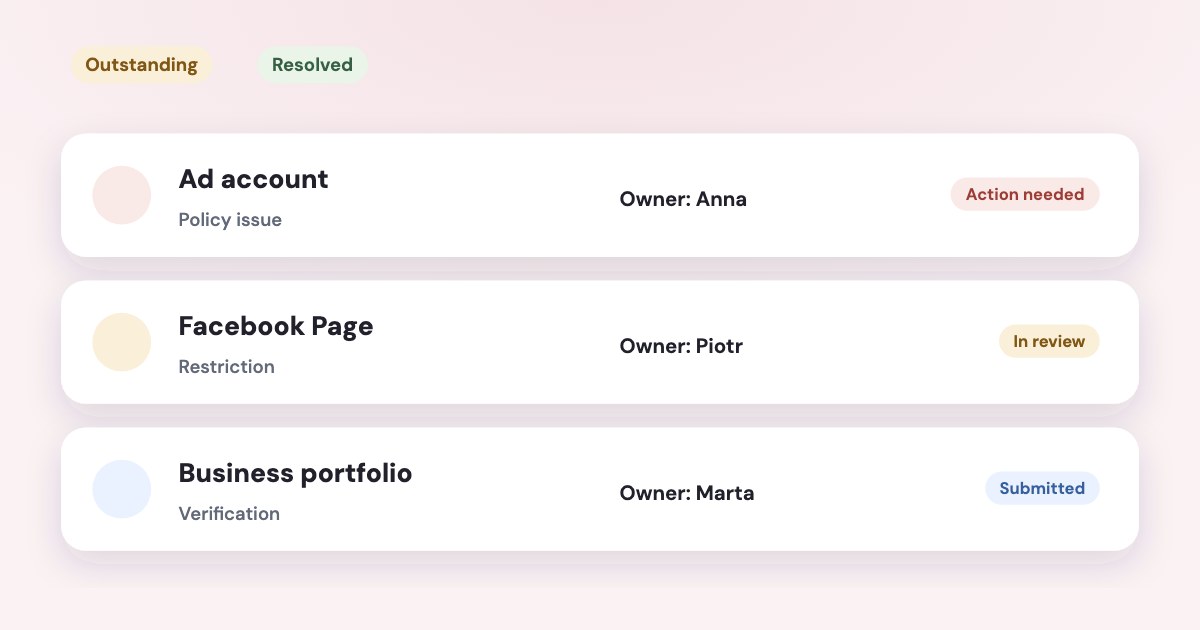
STEPS: 1. Open Meta Business Support Home through Meta’s official help page. 2. Use the calendar icon to select the period you want to review. 3. In Account status overview, find Recent account issues. 4. Select Outstanding to see current issues and available actions. 5. Select the affected account for its details. 6. Use Resolved when you need to review issues already marked resolved. [1]
Write down the affected asset’s name and identifier before assigning work. If your business has several similarly named ad accounts or Pages, a recognizable name alone may not be enough to prevent confusion.
Compare the issue record with the symptom. An ad rejection, a payment problem, and lost access can all interrupt work, but you should not assume they have the same cause or require the same response.
If your immediate problem is that you cannot enter the account, use the ad-account access guide. A policy record cannot help your colleague act if they do not have the required access.
Which asset is actually affected?
Meta distinguishes restrictions on business portfolios, ad accounts, Pages, and personal profiles. The scope matters: a restricted business portfolio and a rejected individual ad are different records with different implications. [3] [4]
| Affected item | Your first handoff question |
|---|---|
| Personal profile | Which person’s advertising access or required action is involved? |
| Business portfolio | Which owned assets and administrator are connected to the issue? |
| Ad account | Which account’s ability to advertise or use features is affected? |
| Page | Which Page’s advertising status needs attention? |
| Ad or catalog item | Is this a specific rejected item rather than a wider restriction? |
Use the table to organize the investigation, not as a replacement for the exact reason Meta supplies. The person who can edit an ad may not be the person who can complete a business or account-level action.
For an agency, include the client and the owner of the affected asset in your handoff. Send the precise issue reference through your normal approved channel rather than asking everyone to repeat the same investigation.
Keep the observation separate from the conclusion. “The record names this Page” is evidence; “the whole business is banned” needs additional support from the actual restriction details.
What can you act on from the issue record?
Meta’s restricted-account guide directs you from Account Overview to the affected account and the What you can do section. It lists possible actions such as Confirm your identity, Complete verification, Secure your account, and Request a review. [2]
Read the action shown before preparing an appeal. If the immediate requirement is identity or security work, a general argument about your ad copy may not answer the task Meta is requesting.
Assign the action to someone who has the necessary authority and access. Meta says you must be an admin on the account to request a restriction review. [2]
Keep documents and identity information inside the official process that requests them. Your internal work note should explain who is responsible and what remains pending, without turning a routine handoff into a collection of private documents.
For the detailed restriction workflow, use Facebook ad account restricted. This article stops at identifying the issue and directing it to the right action owner.
If the issue is business verification, use the Meta business verification guide. Do not assume that completing a different type of verification satisfies the particular request in front of you.
How do restrictions differ from ad rejections?
An ad rejection concerns an ad that Meta says does not comply with its standards or other applicable requirements. Meta separately documents restrictions that can limit advertising, spending, payment features, or access to advertising features. [3] [4]
That distinction determines your next investigation. For a rejected ad, read the stated reason and the affected material; for an account restriction, identify the asset and the available account-level action.
Meta says editing or deleting a rejected ad does not remove the violation from your account. It also warns that deleting the ad may remove your ability to request another review, so do not treat deletion as a general cleanup method. [4]
Use the rejected Facebook ad guide for the detailed choice between editing and requesting a review. Keep the current article’s role as a map of the issue workspace.
Before requesting a re-review, also consider what happens if the decision is reversed. Meta says an overturned ad can automatically resume delivery when its campaign is active; the review action can therefore have a practical delivery consequence. [4]
What should your issue note contain?
Keep a short record with the affected asset, the issue text, its current status, the available action, and the responsible person. Add the date you checked it so an old observation does not become a permanent description of the account.
Separate completed work from pending work in ordinary language. “The administrator submitted the requested information” and “Meta resolved the issue” are different statements, and your team should know which one is supported.
When the status changes, return to the relevant asset and confirm the practical result. A policy record marked resolved is useful evidence, but your team may still need to check whether the original campaign or access problem remains.
If you contact support, explain the mismatch you need help with. An asset identifier, issue reference, and concise account of the action already completed are more useful than a broad statement that nothing works.
Meta’s overview also lets you check the validity of messages claiming that your business account has an issue. Use that official record to ground your response instead of relying solely on the wording of an unsolicited message. [1]
What to do next
Open the current issue record and identify the affected asset and its action owner. Follow the action in What you can do, then record whether you are waiting for your team, a requested verification, or a review outcome. [2]
Use the linked specialist guide for the actual rejection, restriction, access, or verification problem. After the issue changes, check the asset again and confirm that your original business task can proceed.
Where Variafy fits
Variafy does not remove restrictions or decide Meta’s reviews; complete those steps in Meta’s official workflow. Once access is available, it can connect Meta ad data to your AI assistant, with free reading and previewed ad-account changes that require your confirmation. The beta is free by invitation and sign-up is closed. Join the waitlist.
How we checked
Checked on 4 November 2026 against the pages below, read in English. We checked the documentation only: we did not run these steps in a live ad account.
- www.facebook.com/business/help/254088759757736 — Current Business Support Home name, scope, overview labels, and message-validity checks; read in browser November 4, 2026.
- www.facebook.com/business/help/422289316306981 — Account Overview, What you can do, possible actions, and admin requirement for review; read in browser November 4, 2026.
- www.facebook.com/business/help/975570072950669 — Types and scope of advertising restrictions; read in browser November 4, 2026.
- www.facebook.com/business/help/1210227555661027 — Ad rejections, deletion/edit consequences, and delivery after a successful re-review; read in browser November 4, 2026.
What we could not confirm
- That Account Quality has disappeared from every interface
- That every account shows identical navigation
- A universal support entitlement, review deadline, restoration promise, or account-wide health score
- That Variafy can appeal or lift a restriction. No account or review was accessed. Initial text-browser requests returned login screens
- All cited help content was subsequently read successfully in a browser
Variafy is our product.
Questions
Where is Account Quality now?
Meta’s current help directs you to Business Support Home, which brings together account and asset status, policy issues and review actions.
What is the difference between Outstanding and Resolved?
Outstanding shows current issues; Resolved shows issues marked resolved. Open the issue to see which asset it affects and what action Meta offers.
Does a restriction always affect the whole business?
No. A restriction can affect a person, a Page, an ad account or a business portfolio, so identify the affected asset and its owner first.