Google Ads search terms report: exclude, keep or wait?
Use the Google Ads search terms report to review the searches that triggered your ads. For a lead business, exclude clearly irrelevant queries, keep useful demand and wait on relevant queries until conversion delays and a pre-agreed test budget can be assessed. Choose the negative keyword’s match type and scope before saving.
On this page9 sections
How do you find and read the Google Ads search terms report?
Open the search terms report, choose a consistent campaign and period, and review the actual queries alongside their matched keywords. Google distinguishes a search term, the words someone searched, from a keyword, the targeting input you added.
As of 19 Oct 2026, Google Help’s navigation is Campaigns → Insights and reports → Search terms. The Keyword column is hidden by default: use Columns → Attributes → Keyword → Apply to show it. To compare queries by network, see Search partners and lead quality.
The report’s Match type describes the relationship between that query and the keyword; it need not equal the keyword’s configured match type. A broad-match keyword can therefore have a row reported as Exact. This is not the match type of a negative keyword you might add. For deciding whether to use broad match for leads at all, see should you use broad match for lead generation.
- Open and scope: select the intended campaign and period; keep campaign and ad group context with each query.
- Sort by cost: our suggestion is to review the most expensive visible queries first, with clicks and conversions beside them.
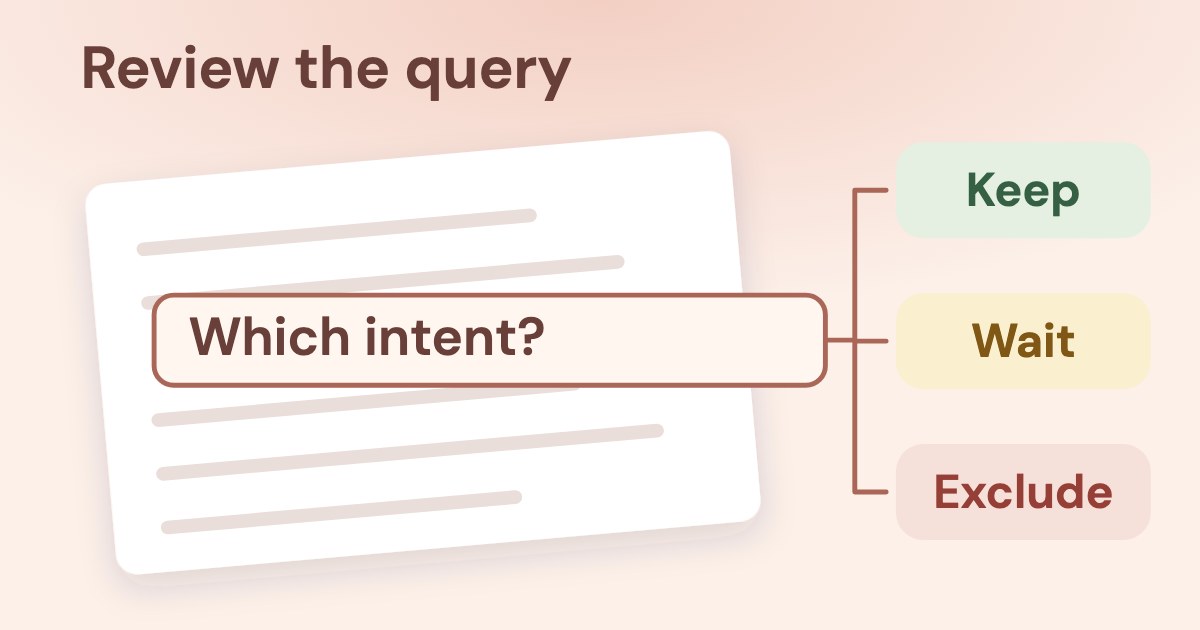
- Label the intent: exclude, keep or wait; check what the business actually sells before judging the wording.
- Choose the exclusion: if needed, specify both negative match type and the narrowest suitable level.
- Record and revisit: save the reason and approver in a journal, then review next week; that cadence is our suggestion.
Use the Google Ads report guide for metric definitions. Before judging zero-conversion rows, check which lead action and goal the campaign measures, and whether your chosen column captures it; Google’s conversion-action guidance explains how those settings affect reporting.
Which search terms should you exclude, keep or wait on?
Exclude clearly wrong intent; keep queries that fit the offer and produce useful leads; wait when relevant queries have too little mature evidence. These are our review rules for a lead business, not Google performance thresholds. Treat a submitted form as evidence of a lead, then check whether it was a real enquiry or booking.
| Our suggested decision | Risk to check before acting | |
|---|---|---|
| Wrong service: “buy dental equipment” in a patient-booking campaign | Exclude the irrelevant query or a narrowly defined intent. | Do not exclude “dental”: it also describes the service being sold. |
| Job intent: jobs, careers, salary | Exclude employment intent from a service campaign only if that campaign is not recruiting or selling career-related education. | A school, training provider or recruiter may want these searches. They are not automatically safe account-wide negatives. |
| Free, cheap, how to, course, training, quote | Check the full query and the offer before deciding. | “Free consultation”, “driving course”, “staff training” and “roof repair quote” can describe a legitimate lead. A price-sensitive emergency enquiry can still be useful. |
| Relevant query with useful leads at an acceptable cost | Keep; examine the landing page and offer before restricting useful demand. | A reported conversion is not proof of a qualified lead. Keep a separate quality or booking check. |
| Relevant query, few clicks or recent spend, no conversions yet | Wait with a named review condition and a spend cap agreed by the business. | Zero conversions may reflect low volume, conversion delay or the wrong action/column. |
| Relevant query, mature reporting, no useful leads, agreed test cap reached | Review the query, tracking and offer; stop that narrow test if further spend is unacceptable. | Overspend against your cap is a business decision, not statistical proof that the words can never convert. |
A universal account-level list containing free, cheap, how to, course, training and quote skips the intent check. For a school or clinic, it can suppress the very offer being advertised. Even jobs and careers need the campaign’s purpose checked before exclusion.
When does “wait” end?
Our suggestion: record the business’s acceptable cost per useful lead, its observed conversion delay and a maximum test spend before deciding to wait. Review when that delay has passed for the clicks being assessed and the agreed spend cap has been reached; review sooner if intent is plainly wrong or tracking is broken. If volume stays low, set a calendar review date and decide whether to extend the test rather than leaving it open indefinitely.
A worked example — for illustration only
Suppose the business accepts $40 per useful lead and typical clicks cost $2: $40 ÷ $2 = 20 clicks worth of spend. Two clicks costing $4 with no conversions are weak evidence; if the business chose $40 as this query’s test cap, reaching it triggers a review after its usual conversion delay.
This is our suggested spending rule, not a Google threshold, a required click count or a reliable probability estimate. A relevant query can still convert later. Check lead quality and the conversion setup before deciding whether to stop its test.
Google explains that conversion delay can make recent cost per conversion look worse because spend is already reported while some conversions arrive later (checked 19 Oct 2026). For setting the business’s own acceptable lead cost, use the cost-per-lead guide; this article supplies no universal CTR or conversion-rate cutoff.
How do negative keyword match types block a query?
For Search campaigns, negative broad blocks a query containing all the negative’s words in any order; negative phrase requires those words in the same order; negative exact requires those words in the same order without extra words. The examples are our illustrations of Google’s negative keyword rules, checked 19 Oct 2026. They describe each negative by itself; other exclusions may also block a query.
| Blocks these examples | Does not block these examples | |
|---|---|---|
| Broad: training jobs | “dental training jobs” and “jobs in dental training”: both words occur, in either order. | “training course near me” lacks jobs; “training job” uses a different word form. |
| Phrase: “training jobs” | “dental training jobs near me”: the two words occur together in that order. | “jobs in dental training” changes the order; “training job” uses a different word form. |
| Exact: [training jobs] | “training jobs” with no extra words. | “dental training jobs” adds a word; “jobs training” changes the order. |
Negative keywords won’t match to close variants or other expansions.
Google says to add synonyms and singular/plural forms separately if you intend to exclude them; it separately says casing and misspellings are accounted for automatically. Do not turn the close-variant rule into a claim that every spelling variation needs its own negative.
Our suggestion for an uncertain but costly query is to start with a narrow exact exclusion, if exclusion is justified, rather than blocking a useful word across many queries.
Google’s report instructions say terms added from the search terms report to a Search campaign are added as negative exact match
by default; use symbols to change the match type.
For ordinary negative-keyword entry without symbols, Google calls negative broad the default. Check the match type before saving. These Search matching examples should not be transferred to Display or Video content exclusions, which Google describes differently.
Where should a negative keyword apply, including PMax and AI Max?
Use the narrowest scope that matches the business reason: one ad group, one campaign, selected campaigns through a shared list, or relevant inventory across the account. The scope map and limits below follow Google’s adding instructions, list documentation and account-level guidance, checked 19 Oct 2026.
| Where it applies | Before saving | |
|---|---|---|
| Ad group | The selected ad group; use this when the intent is wrong only for that group. | Check whether another group serves this query intentionally. |
| Campaign | The selected campaign; use this when the intent is wrong throughout it. | Check every offer in that campaign, not just the row that prompted the change. |
| Shared campaign list | The campaigns to which the list is applied. Adding a negative changes all campaigns using that list. | Review the receiving campaigns before adding a word to an existing list. |
| Account | All relevant Search and Shopping inventory across campaigns, including that inventory in Performance Max. | Reserve this for intent unwanted throughout the account. It is not a blanket YouTube/Display content filter. |
Google documents 1,000 account-level negative keywords, and 20 shared negative keyword lists per account, with 5,000 keywords per list. The adding page calls the list limits subject to change and notes a known issue allowing more than 5,000 in some cases; treat the published limits as planning limits, not extra capacity you can rely on.
For account exclusions, Google’s path is Admin → Account settings → Negative keywords, then the plus button and Save. For campaign/ad-group exclusions and shared lists, use the relevant Google instructions and explicitly check the selected level, campaign or list before saving. For a Search campaign, adding terms from the report defaults to negative exact; check that the match type fits the intended exclusion.
What changes for Performance Max and AI Max?
Performance Max negative keywords apply to Search and Shopping inventory only; Google supports account-level exclusions and negatives for a particular PMax campaign. They do not exclude a term from every PMax channel. Google’s Preview impact guidance allows up to 10 keywords per batch for a PMax prediction; that is a preview batch size, not the campaign’s negative-keyword capacity or a promised result.
Google’s AI Max FAQ says negative keywords are respected with AI Max turned on. AI Max does not make an account-level exclusion safe for every offer: review its business scope before applying it.
For a new or existing Search campaign, Google’s AI Max reporting guide says you should wait at least 2 weeks after enabling AI Max
before changes such as adding negative keywords, to allow learning and optimization.
For AI Max reporting, Google instructs you to add the Source column to the default search terms view and filter Match type for AI Max. It also names the Search terms and ad combinations (formerly known as Search terms and landing pages from AI Max) view in the dropdown.
Brand exclusions are a separate control from literal negative keywords. Google’s brand-settings overview names PMax Search and Shopping, while its application instructions also name YouTube search inventory; the pages differ in detail. Neither wording supports treating a Search negative keyword as an exclusion across all YouTube placements.
Google’s brand-exclusion instructions date the start of moving Search brand exclusions into the AI Max panel to 27 May 2025; existing settings can continue outside AI Max, but adding a new brand list requires AI Max for the campaign.
Why are some Google Ads search terms not showing?
The search terms report is not a complete list of every query: Google omits some terms that lack enough query activity. In its report documentation, checked 19 Oct 2026, Google describes terms that:
don’t have enough query activity
Search terms insights can group low-volume terms into subthemes or “other queries” without exposing the individual queries. An aggregate category cannot supply exact words for a negative; omitted rows are not evidence of zero cost or irrelevant intent.
Our reconciliation suggestion is to compare the sum of visible query costs with a campaign total only when the date range, campaign, network, inventory and filters are comparable. Record any unexplained difference as a coverage gap to investigate, not “wasted spend”. Do not compare all-channel PMax cost with only its Search/Shopping query rows and label the remainder hidden searches.
If reporting scopes cannot be reconciled, report that limit rather than inventing a hidden-query percentage. Where queries are absent because a campaign has no impressions at all, start with the zero-impression diagnosis instead of creating negatives from missing data.
How can Variafy help review the search terms?
Variafy offers read-only Google Ads access after your beta invitation. The implementation checked on 19 Oct 2026 includes google_search_terms for Search query rows with matched keywords, spend, clicks and conversions, and google_search_term_insights for reading opportunities and negative candidates. The Search reader does not include PMax search terms.
The candidate analysis flags costly zero-conversion rows using the returned data; it does not establish that a query is irrelevant or a lead is qualified. It may return partial results, so treat its suggestions as review inputs and check coverage. These readers do not add negatives or otherwise change the account. Before relying on an assistant for this, see connecting Google Ads to ChatGPT or Claude for permissions and checking the first read.
A reading prompt for the workflow
“For the same Search campaign and period, list the visible queries by cost with clicks, conversions and matched keywords. Draft exclude, keep or wait decisions using our offer, lead-cost cap and conversion delay. State missing evidence, and propose a match type and scope only for exclusions I can review. Do not change anything.”
Adding negatives is an account change requiring human approval; this guide promises no deployed write feature. Variafy is in the free beta: join the free beta.
What should you record and check next week?
Record the evidence, chosen scope and reason before an exclusion is saved, then review whether the decision protected the offer’s useful demand. This journal and weekly cadence are our suggestions; the date for a pending query should also reflect the business’s conversion delay and test cap.
| Record for each decision | What the next review checks | |
|---|---|---|
| Query and context | Exact query; campaign/ad group; period, cost, clicks, conversions and known lead quality. | Same reporting scope; conversions that arrived late; useful leads or bookings. |
| Decision and reason | Exclude / keep / wait; offer relevance; acceptable lead cost and agreed test cap. | Whether the reason still holds; whether a different offer intentionally needs this intent. |
| Proposed exclusion | Negative text; broad/phrase/exact; ad group, campaign, shared list or account; approver and save date. | Other useful queries that the rule could block; all campaigns receiving a shared or account exclusion. |
| Wait condition or next action | Review date, conversion-delay window and remaining test spend; tracking issue owner if needed. | Close the wait decision: keep, exclude narrowly, repair measurement or explicitly extend the test. |
Do not save an entire master list because one row was poor. If impressions or useful leads fall after a change, inspect the new negative’s match type and receiving scope before adding more exclusions. Use the lead-business audit checklist when the issue extends beyond search-term intent.
How we checked
Checked on 19 Oct 2026 against raw HTML from 14 public Google Help pages covering the search terms report, negative matching and defaults, adding and sharing lists, account exclusions, Performance Max, AI Max reporting, brands, Preview impact, conversion delay and conversion actions. Interface names and limits use those pages’ wording; no advertising account was opened. The brand pages’ differing inventory descriptions are shown explicitly.
The editorial comparison used the supplied five-guide review and Google AI Mode capture. Decisions, arithmetic, wait conditions and the journal are our proposals, not Google benchmarks or measured client results. Product claims were checked against the implementation. Variafy is our product; Google Ads access is read-only and available after your beta invitation.
Questions
What are search terms in Google Ads?
Search terms are the queries people searched that triggered your ads; keywords are the targeting inputs you added. The search terms report shows query rows that meet Google’s reporting criteria, not every query.
How do I find search terms in Google Ads?
Google Help’s navigation checked on 19 Oct 2026 is Campaigns → Insights and reports → Search terms. Choose the intended campaign and period; use Columns → Attributes → Keyword → Apply to show the matched Keyword column.
What are Google Ads negative keyword match types?
For Search, negative broad blocks queries containing all the negative’s words in any order; negative phrase requires those words together in the same order; negative exact requires the same words in the same order without extras. Synonyms and singular/plural forms are not automatically excluded; Google separately accounts for casing and misspellings.
Should I exclude every search term with no conversions?
No. Our suggestion is to exclude clearly wrong intent, but assess relevant queries against conversion delay, measurement and an agreed test-spend cap. Zero conversions from a few clicks or recent spend do not prove irrelevance.
Why are some Google Ads search terms not showing?
Google omits some terms that do not have enough query activity. Search terms insights can group low-volume searches without revealing individual queries; missing rows do not mean zero cost or supply words you can safely exclude.
Which negative keywords are safe for lead generation?
There is no universal safe list. Jobs, careers and salary may be irrelevant to a service campaign but valuable to recruiters or education providers; free consultation, quote, course and training may describe the offer itself. Judge the full query and choose the narrowest suitable scope.