How to track Meta Ads revenue in HubSpot: from test lead to payment
To track Meta ads revenue in HubSpot, each lead needs three things from the start: a campaign key, a payment record with its own date (not only a closed-won date), and one customer key. With those in place, you can export from HubSpot and compare receipts by lead cohort at day 7 and day 30. This guide follows one test lead from the ad click to its first payment, then shows how to check your export against the free Meta Ads CRM revenue report template, whose sample data gives you an answer key.
On this page11 sections
What HubSpot shows by default, and what it does not
HubSpot records where a contact came from in its original traffic source properties. According to HubSpot’s documentation, for paid social the first drill-down shows the social site, for example Facebook, and the second shows the campaign name taken from utm_campaign. You can also edit the source on a contact by hand, and doing so clears the drill-downs. That makes it a useful clue but a weak key: it describes the first known source, and it can change.
For deals, HubSpot’s default deal properties say that moving a deal into a closed-won stage sets the close date to today, unless you turn that automation off. The deal amount is the total value of the deal. Neither tells you when each payment arrived.
HubSpot’s attribution reports for revenue and deal creation are limited to Marketing Hub Enterprise. Without that plan, a cohort report built from your own export fills the gap.
The report template needs these inputs. This is where each one comes from in HubSpot:
| Template column | Where it comes from in HubSpot |
|---|---|
| Lead date | The date the lead was created or submitted the form. Pick one and keep it for every row |
| Campaign key | A custom contact property filled from utm_campaign at form submission, prefixed meta- |
| Customer key | The contact record ID, or one ID per person after you merge duplicates |
| Payment key | The payment record ID |
| Payment date | The payment’s date property. Decide which one you use |
| Amount | The payment’s gross amount, in one currency |
Closed won is not the same as paid
A deal in a closed-won stage says the sale was agreed. A payment record says money moved. HubSpot keeps the two apart, and a revenue report built on one answers a different question from a report built on the other.
- Closed won is a deal stage. According to HubSpot’s default deal properties, moving a deal into a closed-won stage sets the close date to today, unless you turn that automation off. The deal amount is the total value of the deal. Neither carries the date of each payment.
- A payment record has its own amount and its own date. HubSpot’s payments API also lets you associate it with a contact and a deal, and gives it a status such as
refundedorpartially_refunded.
| Closed-won deal | Payment record | |
|---|---|---|
| The date it carries | The day the deal moved stage, by default | The date of that payment |
| The amount it carries | The total value of the deal | The amount of that payment |
| A customer who pays in installments | One amount and one date | Each payment has its own amount and date |
| Refunds | Not visible in the stage | Visible in the payment’s status |
| The question it answers | Did the sale close? | How much money arrived, and when? |
Here is the difference on the test lead from step 2. The deal is moved to closed won on day 2 with an amount of 360. The customer pays 240 on day 2 and 120 on day 12.
| Received by | Closed-won deal says | Payments say |
|---|---|---|
| Day 2 | 360 | 240 |
| Day 7 | 360 | 240 |
| Day 30 | 360 | 360 |
The two views agree by day 30 but not before, and a cohort report compares campaigns at exactly day 7 and day 30. A report built on close dates would credit this lead with 120 more than had arrived by day 7. It would do the same for every customer who pays in installments, and it would not reflect refunds, which show up in a payment’s status.
Closed won is a fair stand-in only when customers pay the full amount on the day the deal closes and nothing is refunded. Check that against your payment records for a few months before you rely on it, and use payment records for the day-7 and day-30 numbers in the template.
Step 1: put the campaign key on the lead
Add the campaign to the ad’s link as a URL parameter, for example utm_campaign=meta-10001, where 10001 is the Meta campaign ID. The Facebook UTM parameters guide shows how to build links for every ad. Keep one format: a typo today becomes an unmatched payment later.
Then store it on the contact:
- HubSpot forms. HubSpot documents that a hidden form field can capture a URL parameter such as
utm_campaignand write it to a contact property when the form is submitted. It is available on all products and plans. A required field cannot be hidden, and for returning visitors a pre-populated hidden value may be overwritten, so test with a returning contact too. HubSpot’s page does not say whether the property must exist first, so create a custom single-line text contact property for the key before you add the field. - Meta lead ads synced into HubSpot. HubSpot’s lead sync is available on all plans and can take up to two hours to deliver new leads. The page does not say which properties it sets or whether campaign data is stored, so do not assume the key arrives. Check a synced test lead in step 2. If the campaign is missing, see how to match CRM payments to ads and the built-in CRM options for lead ads.
- Forms outside HubSpot. HubSpot’s hidden-field page does not describe embedded or non-HubSpot forms. Test the exact form your landing page uses.
Step 2: follow one test lead
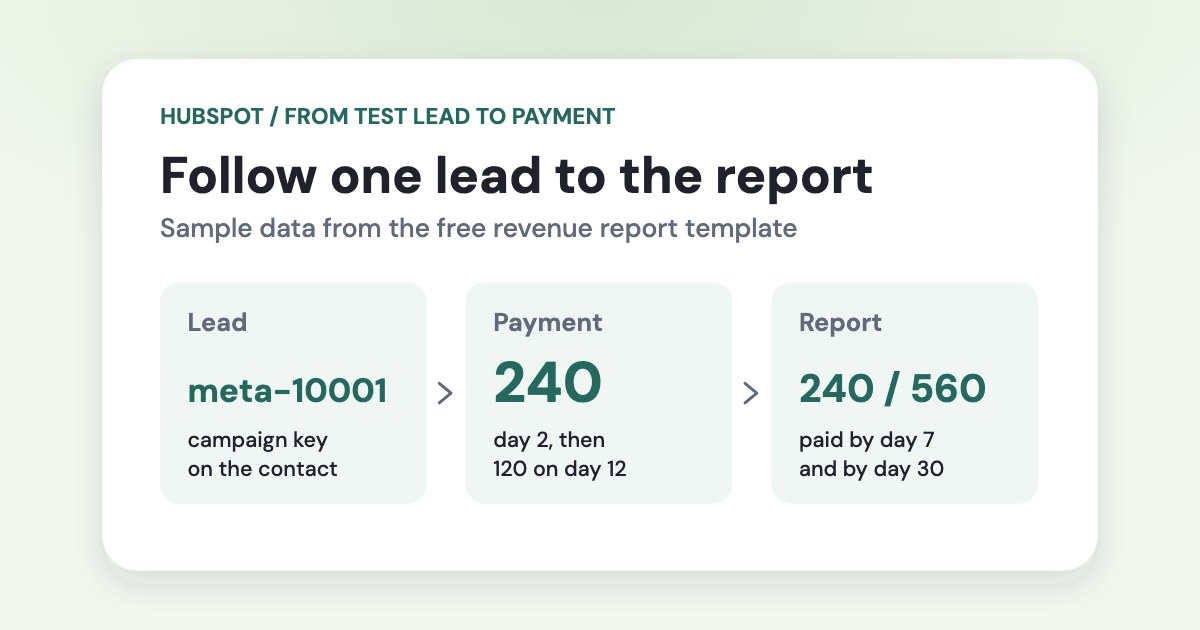
Use a clearly fake test contact, for example test+meta-10001@yourdomain.com, and delete it afterwards. The report template’s sample shows what to expect, so use its first customer, c-01.
- Create the lead. Open your ad link with
utm_campaign=meta-10001and submit the form. For a lead-ad test, submit the lead form and allow up to two hours for the sync. - Check the contact. The campaign key property should say
meta-10001. The create date is the lead date you will use. Original traffic source should show paid social withmeta-10001as the second drill-down; if it shows something else, note what it shows, because sources can differ. - Create a deal and associate it with the contact.
- Record the payments. A first payment of 240 two days after the lead and a second of 120 twelve days after the lead. Step 3 explains how to record payments.
This customer is the first row of the template’s sample. In the report, the September 7 lead week for meta-10001 shows 240 paid by day 7 and, together with the other customers in that cohort, 560 by day 30.
If you also move this deal to closed won on day 2, compare what the deal says with what the payments say: closed won is not the same as paid.
Step 3: record payments, not only won deals
Pick the option that matches how you get paid:
- HubSpot payment records. HubSpot’s payments API describes payment objects as a way to track revenue collected outside HubSpot’s own processing. A payment needs an amount (
hs_initial_amount) and a date (hs_initiated_date), and it can be associated with a contact, a deal and an invoice. Statuses includepartially_refundedandrefunded. You can export payments from Revenue > Payments and choose the properties and associated records (HubSpot’s documentation). The documentation does not say whether several payments can be linked to one deal, how installments should be recorded, or which plans and countries can use payments, so test this in your own portal. - Your billing or accounting system as the source. Export one row per payment from the system that holds the money, and join it to HubSpot contacts by a customer key such as an email or an ID you store on the contact. This is the safest option when installments are involved.
- One deal per payment. This can work for a few large sales. It makes cost per customer harder to read.
Decide which date you will call the payment date. HubSpot’s hs_initiated_date is the date the payment was initiated, and a separate payout date records bank deposits. Use the date you treat as the day the money arrived, and use it consistently.
Step 4: export from HubSpot and fill the template
Export the contacts (record ID, create date, campaign key) and the payments (payment ID, amount, date, associated contact), then paste values into the CRM Payments tab of the template:
| CRM Payments column | Fill with |
|---|---|
| Payment key | The payment record ID, with a text prefix such as p- |
| Customer key | The contact record ID, with a text prefix such as c- |
| Campaign key | The contact’s meta- key. Leave it blank when the source is unknown |
| Lead date | The contact’s lead date, the same for every installment of that customer |
| Payment date | The date you chose in step 3, in the report time zone |
| Amount | Gross amount in the report currency. Keep refunds on a separate list |
Then fill the Report tab: one row per campaign and Monday-starting lead week, with the ad spend and leads for that same week from Ads Manager. Use one currency and one time zone throughout. The template holds up to 50 campaign-week rows and 300 payment rows.
If you also saved the original ad ID in HubSpot, include it in your joined payments export. The free attribution checker compares it with an ad-level Meta export.
Step 5: reconcile your result
Check 1: the answer key
Before you use real data, paste the template’s 12 sample payment rows and confirm that you get the same report. This proves that your copy and your date handling work.
| Lead week and campaign | Paid by day 7 | Paid by day 30 | Customers by day 30 | Cost per day-30 customer |
|---|---|---|---|---|
Sep 7 · meta-10001 (spend 360) | 240 | 560 | 2 | 180 |
Sep 7 · meta-10002 (spend 300) | 200 | 400 | 2 | 150 |
Sep 14 · meta-10001 (spend 450) | 0 | 600 | 2 | 225 |
Oct 12 · meta-10001 (spend 120) | Still collecting | Still collecting | Still collecting | Still collecting |
Matched receipts through the as-of date, October 20, 2026, come to 1,740. Unmatched receipts come to 150: one payment with no campaign key and one with a key that does not appear for that lead week. Payment p-06 arrives on day 7 and counts, because the window counts the lead date as day zero.
Check 2: your own data
- Matched plus unmatched receipts should equal total valid payments through the as-of date in your billing or accounting records for the same period.
- “Payment rows to fix” in the Report tab should be zero.
- Customers by day 30 should equal the number of distinct customers who paid within 30 days of their lead date.
- A cohort that has not had 7 or 30 days to pay should be blank, not zero.
Check 3: when the numbers do not match
| What you see | Likely cause | What to do |
|---|---|---|
| Large unmatched receipts | The key was never captured, was captured on a different property, or changed format | Check the form and link for those leads. Fix the key, not the totals |
| A customer counted twice | Duplicate contact records for one person | Merge them, or give the payments one customer key |
| Day 7 is zero and day 30 is filled | Normal for slow payers, as in the September 14 row of the sample | Wait for the window. Do not judge the campaign early |
| HubSpot revenue by close date differs from the template | Close date is not the payment date, the deal amount is not the money received, or refunds are involved | Reconcile against payment records, not deal amounts |
| Totals differ from accounting | Refunds, a currency mix or time zone differences | Use one currency and time zone, and list refunds separately |
Step 6: read the result
Compare cost per paying customer, not only cost per lead. In the template’s sample, campaign meta-10001 costs $15 per lead and campaign meta-10002 $20, but meta-10002 costs less per paying customer ($150 against $180).
Do not compare cohorts of different ages. The lead-to-payment lag case study shows how much of the money can arrive after day 7. For targets, see cost per qualified lead.
When to automate this
If you do not want to export every week, Variafy’s HubSpot connector reads your deals, their stages, pipelines and deal properties with a read-only key. It works from deal stages, not from HubSpot payment records, so check how your sales are recorded before you compare its numbers with this report. Use the same cohort definitions as this guide when you compare the two.
How we checked
We checked HubSpot’s behavior against its own documentation on November 10, 2026: traffic source properties, hidden form fields, Facebook lead sync, default deal properties, the payments API and payments management, and attribution reports. Where a page does not say how a feature works, this guide says so and asks you to check it in your own portal. All figures are fictional data from the report template. The guide covers HubSpot and Meta Ads; other CRMs work differently.
Questions
Does HubSpot show Meta ads revenue on its own?
Only through its attribution reports, which HubSpot lists for Marketing Hub Enterprise. Without that plan, you can build the same view from an export, as in this guide.
Can I use the closed-won deal amount instead of payments?
You can for a rough count, but it hides timing and installments. Close date is when the deal moved stage, not when the money arrived, so use payment records for day-7 and day-30 numbers.
What about leads created before I added the campaign key?
Leave the campaign key blank for them. They appear as unmatched receipts when they pay, which is the correct picture: it shows how much revenue you cannot trace to a campaign.
Where do refunds go?
Keep them on a separate list. The template counts gross receipts and does not subtract refunds. HubSpot marks refunded payments with a status, which you can use to filter the export.